To post a carousel on LinkedIn, export all your slides as one PDF and upload it as a document post: Start a post, open More, choose the document option, pick the file, give it a title and publish. LinkedIn accepts PDF, PPT, PPTX, DOC and DOCX files up to 100 MB and 300 pages, as long as every page is the same size.
This guide covers the steps on desktop and mobile, the file rules LinkedIn publishes, and the export settings we use so a carousel does not arrive blurry or out of order. Platform facts come from LinkedIn Help, checked on October 5, 2026. Anything labeled as our recommendation is our judgment, not a LinkedIn rule.
What is a LinkedIn PDF carousel?
A LinkedIn "carousel" for organic posts is a document post. You upload one file, and LinkedIn shows its pages as slides that readers swipe or click through. The swipe behavior comes from the document format, not from a special carousel setting.
That is different from carousel ads, which are a paid format built from separate image cards in Campaign Manager. If you are planning paid placement, the rules differ, and our LinkedIn image sizes guide lists both. For when a carousel is the right format at all, start with our LinkedIn post design hub.
How do you upload a PDF carousel on desktop?
LinkedIn's document upload help page lists these steps for desktop:
- Click Start a post at the top of your homepage.
- Click the More icon, then the Add a document icon.
- Choose your file from your computer, Dropbox or Google Drive. You can attach only one file per post.
- Type a document title and click Done.
- Write the post description. Hashtags and @mentions are optional.
- Click Post.
How do you upload it from the LinkedIn mobile app?
The mobile flow on the same help page follows the same order:
- Tap Post.
- Tap the More icon, then Document.
- Pick the file from your device or a cloud service, one file only.
- Add a title and tap Next.
- Write the description, then tap Post.
Our recommendation: upload from desktop when you can. It is easier to check the title, the first page and the description before you publish, and a phone file picker makes it easy to grab an older export by mistake.
What file rules does LinkedIn set for documents?
These are the limits LinkedIn publishes. The table links each one to its source page.
| Rule | What LinkedIn says | Source |
|---|---|---|
| File types | PDF, PPT, PPTX, DOC, DOCX | Upload and share documents |
| File size | Up to 100 MB | Upload and share documents |
| Page count | Up to 300 pages | Upload and share documents |
| Word count | Up to one million words | Media file types |
| Page size | Every page fitted to the same size | Upload and share documents |
| Layers | Multi-layer PDFs must be flattened or merged | Upload and share documents |
| Animation and video | Shown as still images | Upload and share documents |
| Title | Add a title that describes the document | Upload and share documents |
| After posting | Description can be edited; the document cannot | Upload and share documents |
| Downloads | Viewers can download the document as a PDF | Upload and share documents |
Two of these matter more than they look. Because readers can download the file, anything inside it travels: speaker notes, hidden layers and comments in a PPTX can all come along. And because you cannot replace the file after posting, a typo on slide 6 means deleting the post and losing its reactions.
What page size should your PDF use?
LinkedIn does not publish a recommended page size for organic document posts. The only rule is that all pages share one size. The document ads best-practices page lists print layouts such as Letter and A4, which suits reports and white papers more than slides built for a phone.
Our recommendation for social carousels is 1080 x 1350 px, a 4:5 portrait page. It fills more of a phone screen than a square, and it matches the portrait size most teams already use on Instagram, so one set of slides can serve both. A 1080 x 1080 square is the safe second choice when your slides also go into a square feed post.
Whatever you choose, never mix sizes. One landscape chart page inside a portrait deck is the most common cause of a "pages must be the same size" problem. Put the chart on a portrait page instead.
How do you export a clean PDF?
These steps are our recommendation, based on the rules above.
- Export one PDF, not separate images. Every slide becomes one page, in order. Check the page order in a PDF viewer before uploading.
- Flatten the file. In most design tools, a "flatten" or "print" PDF option merges layers. LinkedIn asks for this explicitly.
- Outline or embed fonts. If a font is missing on export, the PDF falls back to a system font and your layout shifts.
- Remove animation and video. They arrive as still frames, so design the still state on purpose.
- Do not rely on links inside the slides. LinkedIn's document ads specs say links in a document only become clickable after a member downloads it, and the best-practices page advises against CTAs inside documents for the same reason. Those pages are written for ads; we apply the same caution to organic posts. Put the link in the post description.
- Keep the file light. In our experience, flat graphic slides stay far under the 100 MB cap. A file anywhere near it usually means uncompressed photos.
Chikaboom exports a carousel template as one multi-page PDF, one page per slide at the template's size, so the pages always match. Each slide below is a page from a 4-page sample built that way with our AURORA demo brand, at 1080 x 1350 px.
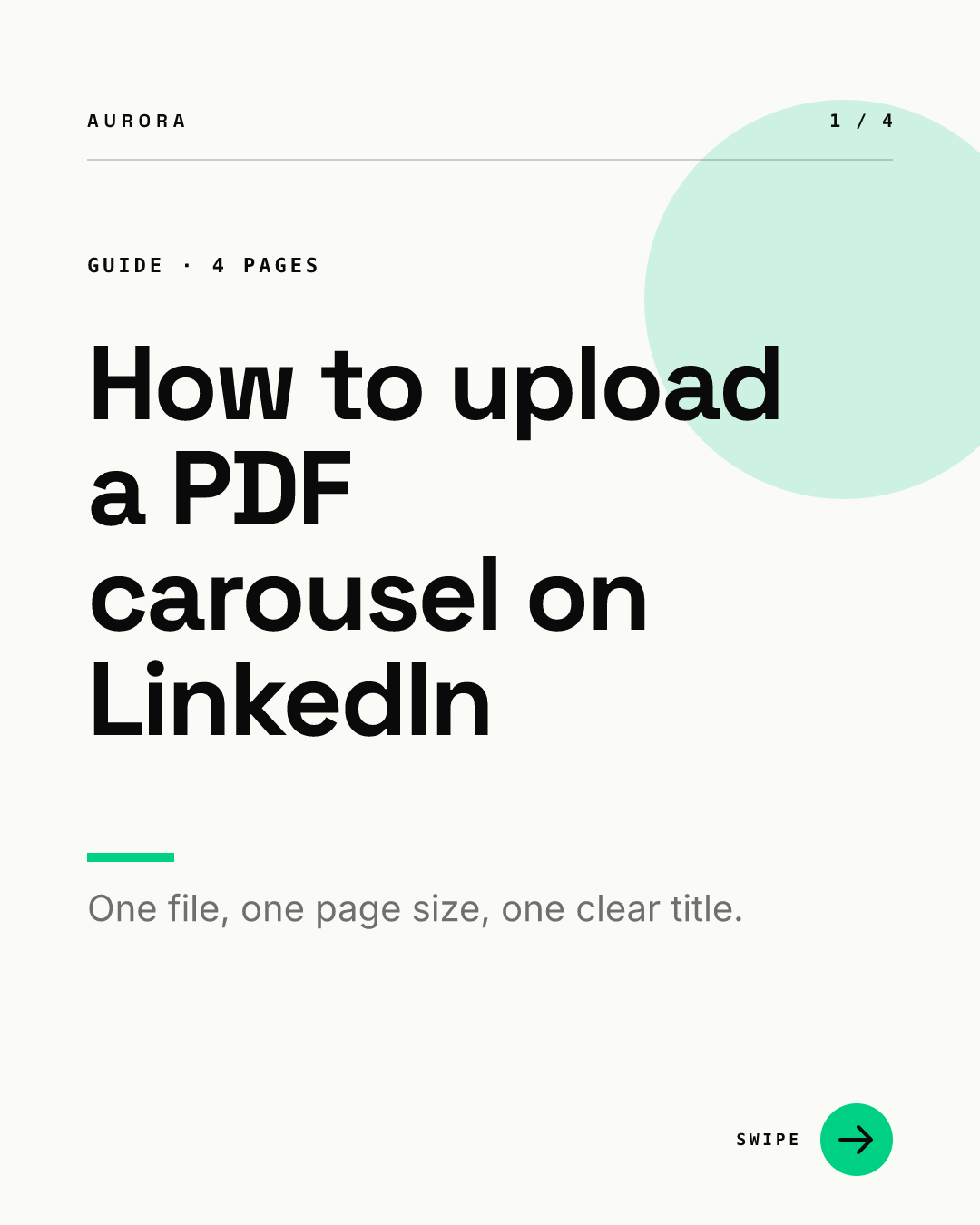
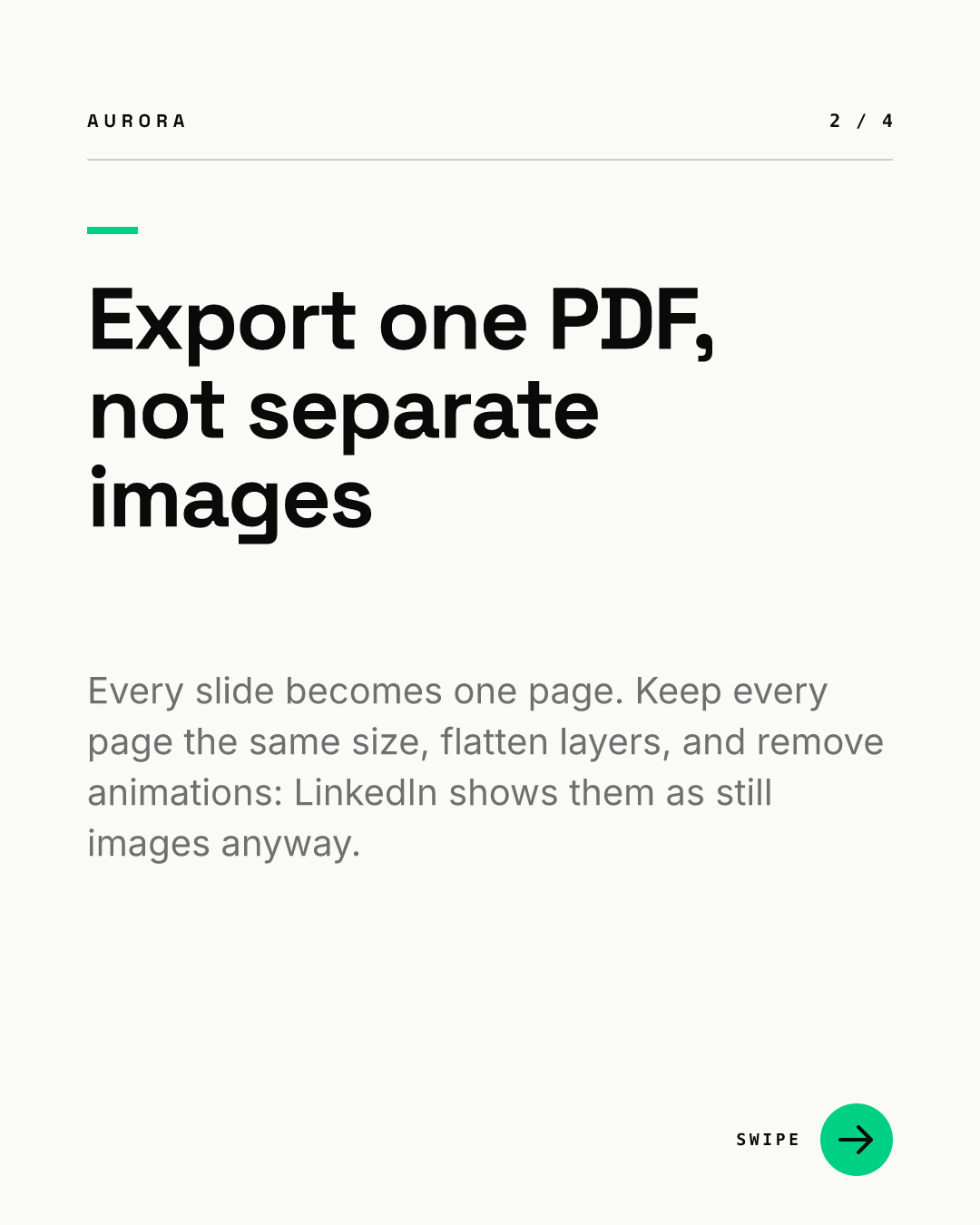
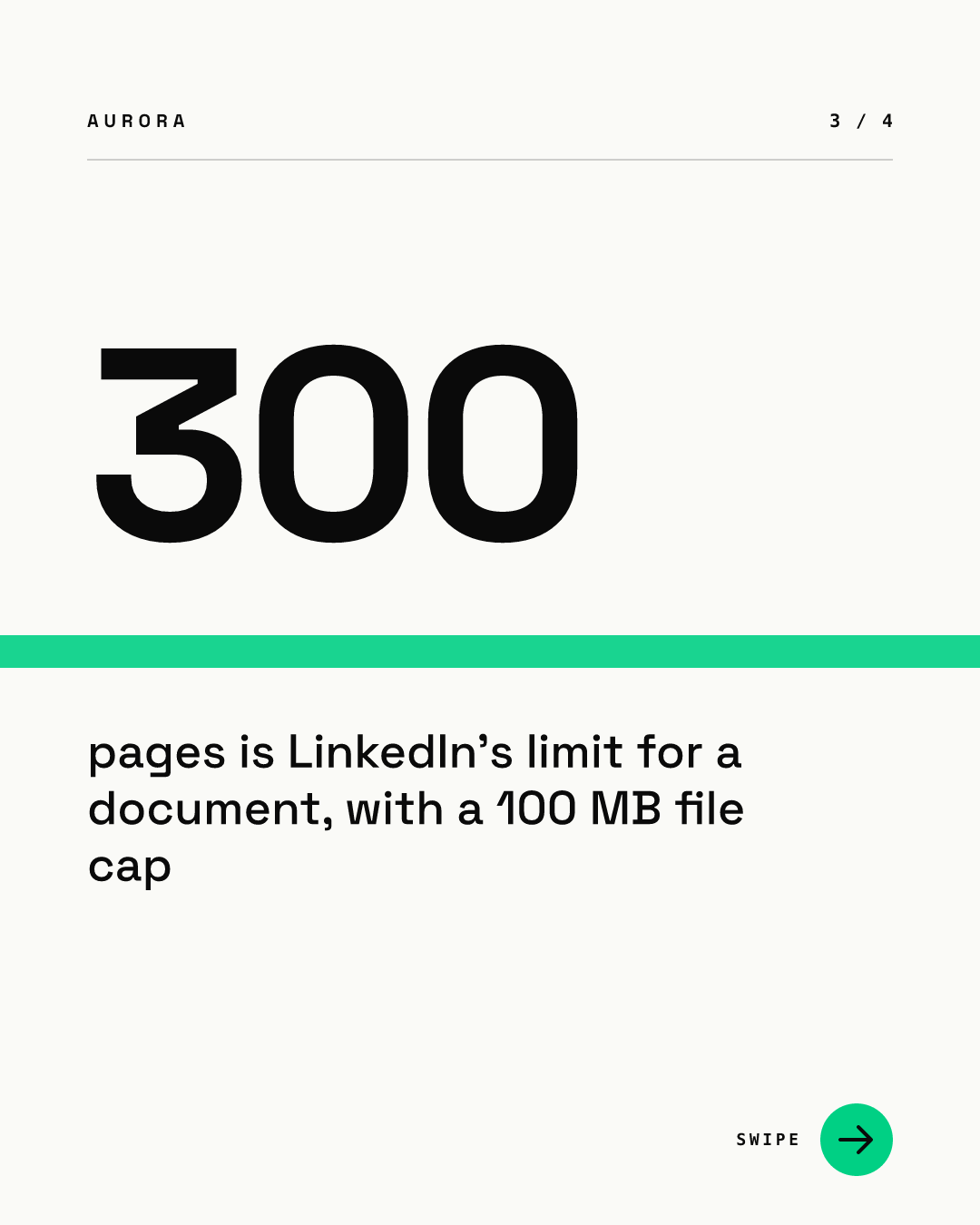

Notice what the last page leaves out: the swipe arrow. A closing page that still says "swipe" sends people looking for a page that does not exist.
What should the title and description say?
LinkedIn asks for a descriptive title, and the title is the label people see on the document. Our recommendation is to make it the promise of the carousel in plain words, such as "7 checks before a post goes live", not a file name like "Q4_deck_v3_final".
The description is the only part you can edit later, so put anything time-sensitive there: dates, links, event details and the source for any number in the slides. Keep the first line of the description different from the cover headline, so the two work together instead of repeating each other.
How do you keep every carousel consistent?
The upload is the easy part. The slow part is building 7 to 10 matching pages each time without fonts, margins and page sizes drifting. A locked template fixes that: the layout, fonts and colors stay put, and the person writing only fills in the text for each slide. You can see how a template-driven slide set behaves in our live demo.
Before you build the next one, two companion guides help: how many slides a LinkedIn carousel should have, and 10 cover slide patterns for the page that decides whether anyone swipes. Our older LinkedIn carousel guide covers content formats for B2B teams.
What should you check before you click Post?
- One PDF, pages in the right order, every page the same size.
- Layers flattened, fonts embedded, no animation you depend on.
- No hidden notes or comments in the file, since anyone can download it.
- No links you need people to click inside the slides; links go in the description.
- File well under 100 MB and 300 pages.
- A title that states what the reader gets.
- A description that adds context the cover does not repeat.
- The last page has a clear next step and no swipe arrow.